FAQ for IOServer | ||||||||||||||||||||
|
Q:I started up IOServer and all I get is a simple main window and a smaller 'IOServer View' window, what do I do now? A:When you click on a folder in the IOServer View you will get another window that gives you more detailed information on that folder.Right mouse click on the folder will give you a list of actions you can perform on that folder. Set the pin on the top right corner to stop the window from being replaced. Double click on the thin grey vertical strip on the left of a window will dock/undock the window. All the smaller windows can be trained to dock one of the four sides of the main window by dragging the vertical area on left of the window to the desired side on the main window. To stop this docking action when moving the smaller window presses the ctrl key when moving. An undocked window can be resized by dragging its side or corner.
The file menu on the main window allows you to create, load or save configuration data. Q: How do I make IOServer recognize my Modbus RTU device on COM1? A:
Q: I have added a 'COM' board, a 'COM1' port and a 'Modbus1' Device. How do I know it is working? A:A red cross on a folder will indicate that object is offline or inactive. A grey cross on a folder indicate that the object is being started. Try clicking on each folder. Each folder will display more information about that folder. The COM1 folder monitors the raw outgoing and incoming messages to the port. The Modbus1 folder monitors the data going to and from the device. If they are any errors, the error code and message will be displayed in the error column. If you only want to monitor messages that have an error, turn off the Display all communication events checkbox in the IOServer->Preference tab. Each tab will display more configuration and settings for that item. Settings can be changed at any time and applied by hitting the 'Apply' button. Q: I have downloaded 'driver.exe' and run it, but when I add a port the xyz protocol does not show up as a valid choice. A:Please run the C:\IOServer\Regit.bat again to register all the protocol files. Please use the default installation directory "C:\IOServer" directory. Check that regsvr32 comport.dll works. Q: Do I have to uninstall IOServer first, before installing a new version of driver.exe? A:To upgrade to a new version of driver.exe, run the new driver.exe. Newer version of ioserver.exe can read .io files created by older versions. To downgrade to an older version of driver.exe, run the old driver.exe. Older version of ioserver may not be able to read .io files created by newer versions. The date of the IOServer.exe is the release date/version number. There is only one version of IOServer, it is the version on the web site. We can only provide support for the current version. Once a project is completed, it is up to the customer to keep in a safe place a copy of the driver.exe and .io file used for that project. Previous releases http://www.ioserver.com/driverxx.exe can be downloaded from our web site. where xx can be from 02 onwards Q: What happens if I used more than 10 bytes in my unregistered version of IOServer or exceeded my licensed number of bytes? A:IOServer will not stop working or shutdown when you used more than the number of bytes licensed. It will request the registration code for the higher byte limit every day. License can always be upgraded to a higher byte limit. |
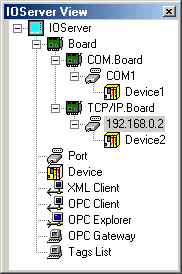
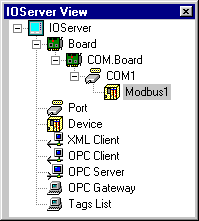 Before a device can be added, a board (Serial or TCP/IP) and a port must be defined.
| © Copyright IOServer Pty Ltd. All rights reserved. |
| ✉ sales@ioserver.com 📞+61 2 9805 0356 (Australia) |
|
Last updated: Thu, 16 Jun 2022 08:01:57 GMT |